
-
CyanogenMod: Google account is not being synchronized
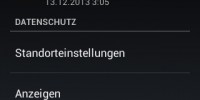
Shortly after I got my XPERIA Mini Pro, I installed CyanogenMod on it and have been quite satisfied with it. But as of a recent update – I don’t know which exactly – my accounts (like Google and Facebook) didn’t synchronize anymore. The sync icon in the options of the different accounts was greyed out,…
-
Netbeans keeps restarting after closing

Netbeans recently informed me that new updates were available. I clicked the “Update” button, unsuspectingly. When Netbeans finally restarted, it only popped up briefly and then closed again immediately. A moment later the splash screen appeared; Netbeans started again, closed again, and so on, until I forcefully terminated the process. Apparently this problem is caused…
-
Install Canon camera software without CD (Windows)
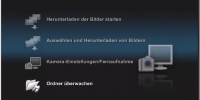
Whenever I’m traveling with my old Canon 350D and my likewise old Windows XP laptop, I face the same problem: I don’t have the Canon software installed on my laptop, and of course I don’t have the CD with me either. Who carries such things around with them all the time? “Well, that shouldn’t be a…
-
Sound stops in Flash videos (e.g. YouTube)
Lately I couldn’t watch any flash videos, for example on YouTube, neither on my Windows 7 computer nor on my old Windows XP laptop. Well, I could watch them – but every few seconds the sound would stop playing. I found out that several other people had this problem, too, and apparently it was caused…
-
Firefox doesn’t warn when closing multiple tabs
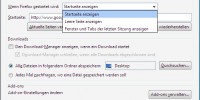
A few weeks ago, my mouse started to slowly conk out: It kept double-clicking unintentionally, so it frequently happened that, when I closed a program by clicking on the “X”, it would also close the window behind it. That was very annoying – especially because it very often hit my Firefox with 20 pages open,…
-
“View image” in Firefox 11

On March 13, a new Firefox version came out once again, namely version 11. Apart from the fact that I find their insanely small update intervals completely over the top – to me it seems like version 3.6 was only a few weeks ago – Mozilla now started to build in new “Annoyances” with each release,…